How to Set Up Workday-Active Directory Integration (Entra ID)
Gregg Davis12 min read

If your company uses the Workday HR management tool, consider integrating it with on-premises Active Directory (AD) or cloud-based Entra ID (Azure AD).
This connection can streamline and improve user management. It frees your IT department to focus on more important activities rather than being bogged down by routine tasks.
In this article, we’ll cover everything you need to know about integrating Workday with AD. We’ll discuss its definition, use cases, and benefits. We’ll even share some tips to ensure a successful integration. If you’re evaluating Workday alongside other HR systems, our integration guides for other HR systems show how each one connects to AD.
Understanding Workday to AD Integration
Workday is an AI-powered software that specializes in human capital management and financial planning applications. It helps organizations handle tasks like payroll, time tracking, and employee engagement efficiently.
On the other hand, Active Directory from Microsoft is a traditional, on-prem directory service that provides a means to manage identities within network environments.
In addition to on-premises Active Directory, Microsoft also offers a cloud-based directory called Entra ID (formerly Azure Active Directory).
Workday supports integration with both on-premise AD and Microsoft Entra provisioning service. This connection enables real-time data sync between the HR software and directory service. It reduces the need for manual data entry, which can be prone to errors.
Common Applications of Integrating Workday Into AD
When you implement an integration system, user experiences and administrative processes see significant improvements. Below are popular applications for connecting Workday to AD (Entra ID).
Employee Onboarding and Offboarding
Integrating Workday with AD automates IT onboarding and offboarding workflows.
As soon as a new employee is entered into Workday, their information is automatically synced to your AD environment. In other words, the connection instantly sets up their user accounts and access rights. It significantly speeds up the onboarding process.
Similarly, when an employee leaves, their permissions are promptly revoked and accounts deleted. This no-touch offboarding process protects your systems against unauthorized access.
Centralized User Management
When you sync Workday with Active Directory, you can manage user profiles and permissions from a single location.
This centralized user management reduces the administrative burden on IT teams. That is because changes in Workday, like promotions or department transfers, are instantly reflected in Active Directory.
Active Directory User Provisioning
Integration can also simplify Active Directory user provisioning by automating account creation and identity management.
When HR adds a new employee to Workday, the integrated system can instantly provision users in AD based on their roles. You no longer need to wait for the IT department to grant new users access to systems.
Compliance Tracking
Compliance management becomes more straightforward with Workday to AD integration. This setup ensures that all user access rights and permissions align with organizational policies and legal requirements.
It can also generate reports to help you monitor and audit compliance across your IT environment.

Benefits of Workday to AD Integration
After learning how Workday and AD can be applied together, you might be curious to know how they can benefit your business. Here are the top advantages of integration:
Simplify IT Management
Integrating Workday with Active Directory can transform how your IT team manages users across the entire network.
This integration automates many repetitive tasks, such as user account setup and permissions management.
As a result, your IT staff can focus on more strategic initiatives that drive business growth.
Boost Operational Efficiency
Since integration automates routine tasks, it can significantly increase operational efficiency.
For your IT department, the connection means they no longer need to create accounts and enter details manually. The integration handles everything, which can minimize errors and ensure consistency across the board.
It can also boost the productivity of new employees. That is because they instantly have access to the necessary tools to perform their jobs well. They don’t have to wait for the IT team to grant them permission rights.
Improve Security
Another benefit of integrating Workday into Active Directory is a stronger security posture.
The integration makes sure that only authorized users (based on Workday credentials) can access systems connected to AD.
If workers get promoted or resign from your company, it automatically updates employee status and respective permission rights. This helps secure your network against insider threats.
Enhance User Experience
Workday to AD (Entra ID) integration provides a better user experience for both employees and the IT team.
New employees enjoy faster access to necessary systems from day one.
Meanwhile, IT staff can benefit from automated management and reduced tickets related to access issues.
Increase Cost Savings
On top of secure and seamless access, integrating Workday into AD can also lead to cost savings for your business.
For example, automation can reduce labor costs. You no longer need to hire additional IT employees to handle data transfers between Workday and Active Directory. The integration can instantly sync information.
Additionally, the reduction in errors helps avoid costs associated with security breaches and compliance issues.

How to Set Up Active Directory for Workday Integration
After learning the benefits of integration, you’re probably excited to start.
However, you should first learn how to integrate Microsoft’s directory service with this HR management software. You can follow the steps below to successfully integrate AD (Entra ID) and Workday.
1. Prepare Active Directory
First of all, you should prepare Microsoft AD to handle incoming data from Workday HR software.
Check whether your current AD system can support the user account details you plan to sync from Workday. Review and update the user provisioning app to ensure it has the custom attributes necessary for your organization.
Additionally, consider cleaning up your on-prem Active Directory or cloud-based Entra ID to remove outdated account details. It is also the perfect time to revoke access to non-active user accounts to guarantee data security. This cleanup can reduce sync errors and improve user provisioning.
2. Establish Secure Connectivity
It’s important to establish a secure connection between Workday and Microsoft AD to protect sensitive data.
Use robust authentication protocols and encrypted channels for data transmission. A VPN setup or SSL/TLS implementation will protect user account data while in transit.
You should also configure Workday and Microsoft AD’s privacy settings for data security. Limit access to authorized IT staff and enable security logs to track user access or changes.
3. Configure Synchronization Settings
Configuring the synchronization settings is another important step in the integration process.
Find the specific user attributes you want to sync from Workday to AD (Entra ID). Then, define how often you need to sync data. Depending on your company’s needs, you can choose to transmit data on a schedule (e.g., daily, weekly) or in real time.
You should also set up error-handling procedures to manage any issues that might arise during data sync. Define clear and default rules for what happens if the data transfer fails. You can ask the system to retry, send a notification, or stop for manual intervention.
4. Set Up Provisioning and De-provisioning Settings
You should also establish user provisioning and deprovisioning settings in Microsoft Active Directory to manage accounts effectively. This involves AD configuration to automatically create, update, or disable a user account based on the information from Workday.
For example, when new hires are added to Workday, the synchronization process immediately creates an AD account with the appropriate access rights.
Similarly, if employees leave the company and their Workday status is updated, their AD account should be disabled and removed accordingly.
By setting up user provisioning and de-provisioning settings, you can maintain cybersecurity compliance and reduce administrative burden.
5. Automate Data Synchronization Between Workday and AD
Automating the data synchronization from Workday to AD (Entra ID) can significantly improve the efficiency and reliability of the integration.
This automation minimizes manual interventions, reduces user errors, and ensures that the user data is accurate across both systems.
Consider using third-party software to automate data sync between Workday and AD. These tools often come with logging and alerting features, which help monitor the health and success of the data transfer.

How to Configure Workday for Active Directory User Provisioning
After connecting your HR management platform to Active Directory, you can now configure Workday user provisioning. Below are the steps to follow:
1. Set Up Workday as a Source System
First, you should set Workday as a source system for on-prem Microsoft AD or cloud Entra ID.
Identify which integration system users will have data access. This involves configuring permissions for which data can be shared and with whom. Check whether existing users can perform required tasks without compromising the security of sensitive data.
Then, you can establish specific domains and security groups to manage employee data and synchronize it. Domains control data access, while security groups define which new employees have access based on their roles.
2. Map Workday Data to Microsoft Active Directory
Next, you can map data fields in Workday to ensure they match employee information in your on-premises Active Directory or cloud Entra ID.
Mapping is key for successful and accurate data synchronization. Mismatches in data mapping can lead to user creation errors, such as incorrect usernames, roles, or permissions.
These are important considerations:
Select and Prepare Data Fields
Choose which data fields are needed in AD and prepare them in Workday. These usually include user names, email addresses, job titles, and department names.
You might also need to customize data fields to meet the specific needs of your AD configuration.
Implement Attribute Mapping
After preparing data fields, you can implement the attribute mapping.
This usually involves transforming data formats to match AD requirements or creating conditional mappings based on specific data groups.
3. Enable and Launch User Provisioning
Once mapping is done, you can enable user provisioning. This automates AD account creation, updating, and deactivation based on employee information in Workday.
It involves two main steps:
Configure Provisioning Settings
First, configure the technical settings to control how you transfer data from Workday to Microsoft Azure AD (Entra ID) with a single sign-on. Settings include how often synchronization happens, what triggers a sync, and how the system handles account updates.
Launch Initial Sync
Then, you can perform an initial sync to check if everything works as expected. Monitor the process for any errors and make adjustments as needed. Identifying issues early during Workday integration allows you to correct issues before going live.
4. Maintain Documentation and Compliance
Keep detailed records of all configuration settings and data mappings. Also, take note of any changes made to the Workday integration setup. These will help you troubleshoot issues, conduct future audits, and train new IT staff.
Additionally, you can review compliance policies to ensure you meet all legal standards, especially if there are changes in data protection laws. Then, update how Workday and AD handle information accordingly.
Best Practices for Maintaining Workday to AD Integration
A seamless integration between Workday and Active Directory (Entra ID) guarantees that user provisioning remains consistent, efficient, and secure. Here are some best practices to keep Workday to AD integration in optimal condition.
Update and Audit Regularly
Workday and Active Directory frequently release updates that may include new features, security enhancements, or bug fixes.
You should update both software platforms promptly to avoid security vulnerabilities and enjoy improved functionalities. Make sure to schedule these updates during off-peak hours to minimize disruption to daily operations.
Besides regular updates, you should also audit both systems every quarter. Doing so helps you identify issues related to data accuracy, synchronization problems, or security breaches.
Once you determine these problems, you can quickly resolve them before they impact the Workday to AD integration.
Provide Training and Support for IT Teams
Technology evolves rapidly, and Workday and AD are no exception to this. It’s important to train IT staff on the latest software advancements to manage the integration more effectively.
You should provide regular training sessions and access to resources like webinars, workshops, and industry conferences.
You can also develop a robust support framework to help IT professionals resolve integration issues quickly. This framework may include open communication between your employees and software vendors.
Make sure your team knows who to contact when they encounter problems with Workday integration.
Lastly, IT employees should be encouraged to share feedback on the integration process. Their assessment can help identify areas of improvement and optimize data synchronization.
Why Should You Use ezOnboard for Integrating Workday Into AD?
Implementing the best practices above can help you maintain a strong connection between Workday and Active Directory. However, achieving this can be complex without the right tools.
This is where ezOnboard comes into play. It offers an automated digital solution that can help you with the following:
Automation of Account Creation and Updates
ezOnboard automates new user creation in both on-prem Active Directory and cloud Entra ID during employee onboarding. Also, it automatically updates existing user accounts when new hires switch roles and departments.
Automated account creation and employee lifecycle updates reduce the burden on IT staff. As a result, they can focus on more strategic tasks that help your business grow.
Secure Access Control
ezOnboard empowers organizations to limit or grant data access to existing users based on their roles, departments, or other criteria.
This software also minimizes risks associated with manual data entry and configuration. It can guarantee the security of sensitive data.
Efficient Onboarding and Offboarding
ezOnboard is an automated employee onboarding and offboarding software.
It automates user account provisioning in Active Directory and Entra ID (Azure AD). Creating user accounts and managing access happens in real time as soon as the HR system is updated. With this tool, welcoming new team members into your company significantly takes less time.
When employees quit an organization, ezOnboard automatically revokes their access rights. It reduces the risk of ex-employees having access to confidential company resources.
Compliance and Reporting
ezOnboard notifies you by email or webhook when a change needs your review. It keeps an auditable record of every change it makes in AD, including when it happened and which rule made it.
This software also enhances visibility into user access rights. It enables IT administrators to maintain better control over the network’s security system.
Compatibility with HR Systems and Other Tools
Another standout feature of ezOnboard is its compatibility with multiple HR systems and with Active Directory, Entra ID, and Exchange.
This flexibility ensures that it can seamlessly fit into your existing IT infrastructure without requiring significant changes or additional resources. It ultimately empowers your IT staff to do more with less.
Seamless Workday to Active Directory (Entra ID) Integration with ezOnboard
With ezOnboard, connecting Workday to on-premises Active Directory and cloud Entra ID has never been easier.
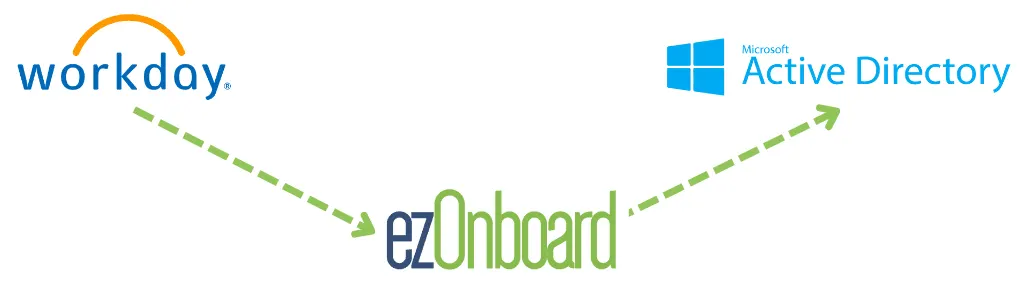
It automatically integrates this HR software with Microsoft’s directory service and reflects user changes based on predetermined business rules.
Their automated solution ensures that your new hires are ready to hit the ground running from day one. Meanwhile, departing employees are securely transitioned out on your timeline.
You can transform the traditional, often cumbersome, onboarding and offboarding processes into more efficient and error-free operations.
Request a demo today or check out this ROI calculator to see how much money ezOnboard can save you.
FAQs About Workday Active Directory Integration
Can Workday integrate with Active Directory?
Yes, Workday can integrate with Microsoft Active Directory (AD) to automate user provisioning, deprovisioning, and role-based access management. This integration ensures that employee records in Workday automatically sync with AD, which can eliminate the need for manual updates.
How to integrate Active Directory?
To integrate Active Directory with Workday, IT teams should configure Workday’s provisioning tools or use middleware like ezOnboard. The process involves mapping Workday employee attributes to AD, establishing secure connectivity, and setting up provisioning settings.
Don’t forget to test and monitor the integration to guarantee smooth synchronization. You should also record the steps taken to help future employees set up the integration with ease.
Does Workday integrate with Microsoft?
Workday connects to various Microsoft services, including Active Directory and Azure Active Directory (now known as Entra ID). This allows enterprises to automate employee onboarding and offboarding, centralize user management, and simplify user provisioning.
What systems integrate with Workday?
Workday integrates with numerous enterprise systems, including Active Directory, onboarding software (ezOnboard), payroll systems (ADP), and collaboration tools (Microsoft Teams, Slack).
These connections help businesses unify HR, finance, and IT processes to ensure seamless data synchronization across multiple platforms.
What are the common challenges faced during Workday to AD integration?
Integrating Workday into AD (Entra ID) comes with several challenges. These usually include mismatched data fields, synchronization errors, and security issues. Proper attribute mapping and regular monitoring of Workday web services and the AD environment help address these challenges effectively.