Namely to AD (Entra ID) Integration: Benefits and Steps to Follow
Chad Burggraf7 min read

Are you looking for a way to sync employee data from Namely to Microsoft Active Directory (AD) or Entra ID (formerly known as Azure AD)? You might consider integrating both systems.
Once fully integrated, your IT team can easily manage digital identities. They no longer need to track users, roles, and permissions from multiple platforms.
In this article, we’ll discuss the other benefits of Namely to AD integration. We’ll also provide a step-by-step guide to get you started.
Benefits of Integrating Namely with Active Directory
Here are the advantages of Namely to Active Directory (Entra ID) integration:
Centralize User Management
One of the main advantages of integrating Namely with Azure AD is centralizing user provisioning and deprovisioning.
Instead of manually creating, updating, or deactivating user accounts across different platforms, the integration simplifies these steps.
For example, when HR updates employee details in Namely, the same changes are automatically reflected in Active Directory.
IT managers no longer need to coordinate between departments or update things manually. This leads to a more accurate process for managing user identities and access rights.
Automate Employee Onboarding and Offboarding
Manually handling employee onboarding and offboarding can be tedious and time-consuming for IT teams. Imagine creating Azure AD accounts, dealing with user provisioning, and setting up emails every time new employees join the company.
Fortunately, connecting Namely to AD can automate IT onboarding and offboarding processes.
As soon as HR adds new users in Namely, the integration automatically creates Active Directory accounts with the correct permissions.
Likewise, when an employee is removed from Namely, their AD accounts and access rights are instantly deactivated.
IT leaders can ensure no step is missed during these critical transitions. Meanwhile, new employees can quickly become productive team members from day one.
Improve Security
Another benefit of integrating Namely with AD is improved security.
Since it promptly removes accounts and permissions when employees leave the company, it can ensure secure access throughout the employee lifecycle. This can reduce the risk of security breaches.
Integration also allows you to implement multi-factor authentication. MFA adds an extra layer of security, particularly during login. It requires employees to verify their identity through additional steps, like SMS codes or app-based authentications.
It can prevent unauthorized access and protect your sensitive company data from security threats.
Reduce IT Workload
Connecting Namely to Azure Active Directory (Entra ID) can reduce the manual workload of your IT employees.
They no longer need to update user details or change access permissions because these tasks are already automated. This makes their work more efficient and less stressful.
Automation can also lead to fewer errors and inconsistencies. Your IT team doesn’t have to worry about mismatched employee details as long as everything is synced properly. They can spend more time on strategic projects that contribute to business growth.

How to Integrate Namely with Active Directory (Entra ID)? A Step-by-Step Guide
After understanding the benefits of Azure AD (Entra ID) integration with Namely, you’re probably curious how to get started. Below are seven simple steps you can follow for a smooth integration.
1. Plan the Integration Process
First of all, you must develop an integration plan. This involves preparing system requirements and gathering employee data from the HR department.
Prerequisites include subscription and admin permissions in Namely and Active Directory. You should also have a testing environment where you can apply the changes before deploying the integration in your IT environment.
Then, determine which employee data you want to sync between Namely and AD. Common user attributes are user roles, access permissions, and department info.
2. Establish the Connection Between Namely and Active Directory
After creating an integration plan, it’s time to connect the two systems. You can add Namely to Entra ID’s list of managed SaaS apps from the Microsoft Entra application gallery.
To do this, sign in to the Microsoft Entra admin center as at least a Cloud Application Administrator.
Browse to “Entra ID,” then “Enterprise apps,” and select “New application.”
In the “Add from the gallery” section, type “Namely” in the search box.
Lastly, select Namely from the results and add it to your tenant. The gallery app handles sign-in to Namely. It doesn’t sync employee records into your directory, which is what the field mapping in step 4 is for.
3. Configure Single Sign-On
Once both systems are connected, you can set up single sign-on (SSO) to allow users to log in to Namely using their Active Directory accounts.
SSO reduces the number of passwords employees need to manage and remember. It can improve the user experience and enhance security.
For SSO to work, you must configure it in the Microsoft Entra admin center. Browse to “Entra ID,” then “Enterprise apps,” open the Namely app, select “Single sign-on,” and choose “SAML” as the method.
Edit the “Basic SAML Configuration” section. Enter your Namely sign-on URL (in the form https://<subdomain>.namely.com) and the identifier (https://<subdomain>.namely.com/saml/metadata). Namely’s support team can confirm the exact values for your account.
Next, in the “SAML Signing Certificate” section, download the “Certificate (Base64)” to your computer. Then copy the “Login URL” from the “Set up Namely” section.
Then, open another browser window and sign in to your Namely company site as an administrator.
Select “Company” in the top toolbar, open the “Settings” tab, and select “SAML.”
On the “SAML Settings” page, select “Enable SAML.” Paste the Login URL into the “Identity provider SSO url” field. Then open the downloaded certificate in a text editor and paste its contents into the “Identity provider certificate” field.
Lastly, click “Save” to turn on SSO. Namely supports service provider-initiated sign-in, so users start from the Namely sign-on URL or from the Namely tile in Microsoft My Apps.
4. Map Employee Data Fields for Synchronization
The next step is to map the employee data fields between Namely and AD (Entra ID). Doing so ensures that all user attributes in Namely, such as employee names, job titles, and departments, are accurately reflected in Azure AD.
You must review the mappings in your sync tool and customize them if necessary to match your organization’s structure.
For example, if your company has remote and on-site employees, you can add another data field for this information. Then, you can assign different access rights based on this employee classification. Make sure this attribute is accurately mapped in Azure AD for accurate data flow.
5. Test the Integration with Sample Data
Before full deployment, it’s important to test the integration and SSO with a small set of sample data. This will help you identify any issues that can potentially disrupt operations once you’re live.
You don’t have to use a real employee profile for this testing phase. You can create a Namely test user called Britta Simon or any random name. In Namely, add the test user under “People,” then the “Directory” tab, and “Add New Person.”
You should also make an Entra ID test account that matches it.
Next, you should grant the Entra ID test account access to the app. In the Microsoft Entra admin center, open the Namely app under “Enterprise apps” and select “Users and groups.”
Then, add the test user “Britta Simon” and assign it to the app.
After doing these steps, check if the SSO configuration works. You can select “Test this application” on the app’s single sign-on page or sign in from the Namely tile in My Apps.
You can also change different fields in Namely. Then, verify if the changes are accurately reflected in Azure AD.
Take your time during this testing phase, as it can save you from larger issues down the road.
6. Go Live
Once testing is complete, it’s time to roll out the integration to the entire organization.
You can coordinate with your HR and IT teams to minimize potential disruptions during the integration process.
You should also carefully monitor the data flow in the first few days to check if everything is working as planned.
If you encounter any issues, you should address them quickly to avoid long-term problems.
7. Conduct Regular Audits
After going live, you can conduct regular audits to maintain a secure and accurate connection between Namely and AD.
You must check if user roles, permissions, and other data are up to date.
Regular audits also help you evaluate whether the integration is still meeting your organization’s needs. If not, you can adjust the connection as necessary.
When you keep things running smoothly, HR and IT can both trust that the directory matches the employee records in Namely.
Automate Namely to AD (Entra ID) Integration with ezOnboard
Planning and executing successfully will ensure that your IT department continues to benefit from the integration.
ezOnboard seamlessly integrates an organization’s HR software (such as Namely) with on-premises Active Directory or cloud-based Entra ID (Azure AD). It automatically updates employee details when changes are made in the Namely platform. Namely sits alongside Workday, BambooHR and others in our library of HR integration guides.
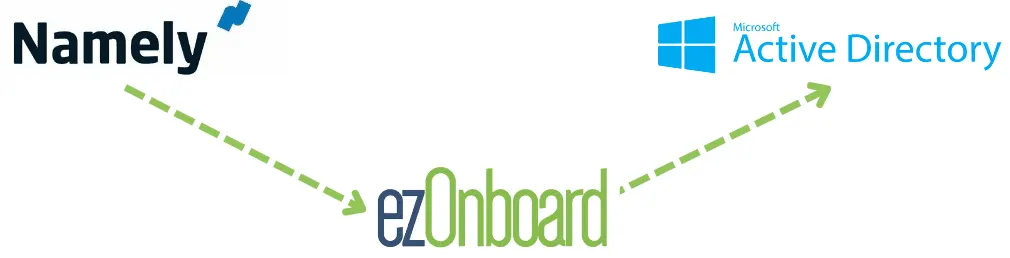
With ezOnboard, you can transform the traditional, often cumbersome, onboarding and offboarding processes into more efficient and error-free operations.
Ready to reap the benefits of this integration? Request a demo or check the ROI calculator to see how much money ezOnboard can save you.
FAQs About Namely to AD
What is Namely?
Namely is a cloud-based HR platform that simplifies tasks like payroll, performance reviews, and talent management. It helps companies manage employee data, track working hours, and automate HR processes.
Namely also provides managed benefits consulting services to assist businesses in planning benefits programs. This can help attract and retain top talent.
What are the common challenges when integrating Namely with AD?
IT employees find it difficult to map user attributes accurately, enable SSO, and troubleshoot sync errors. Using a middleware solution, such as ezOnboard, can simplify the integration by automating routine tasks.
How do I maintain a strong connection between Namely and Active Directory?
You should schedule regular audits, monitor data flow, and update the integration to maintain a strong connection between Namely and AD (Entra ID). Your IT team should work closely with the HR department to keep both systems efficient.