Insperity to AD (Entra ID) Integration: 5 Simple Steps to Follow
Chad Burggraf4 min read

If your company uses the Insperity HR solution, you can integrate it with your on-premises Active Directory (AD) or cloud-based Entra ID (formerly Azure AD) to simplify user provisioning.
By syncing employee information between Insperity and your AD environment, you’ll eliminate manual updates, reduce errors, and automate onboarding and offboarding processes.
In this article, we’ll teach you how to establish this connection in five simple steps. Our PEO and HR system integration guides cover other providers, such as TriNet.
Prerequisites for Integrating Insperity with Active Directory
Before you begin the integration process, you should prepare a few things ahead of time to ensure a smooth setup.
First, you need admin access to Insperity and your organization’s Active Directory environment. Without the right permissions, you won’t be able to establish the necessary connections.
Next, verify that your AD system is up to date and properly configured. This includes having accurate employee information and well-established user roles.
You should also check if your network meets cybersecurity compliance standards for API communication between Insperity and AD (Entra ID). This can prevent data breaches during the integration process.
The last step involves finding the right AD provisioning service that can connect both systems seamlessly.
Once these prerequisites are in place, you can move on to the actual steps of the integration.

How to Integrate Insperity with AD? A Step-by-Step Guide
Now that you have everything in place let’s discuss the steps for integrating Insperity with Active Directory (Entra ID). Follow this guide to get the connection up and running smoothly.
1. Set Up API Access
The first step is configuring API access settings on Insperity and your on-premise AD or cloud-based Entra ID.
You’ll need to generate API keys from Insperity, which will allow both systems to communicate in real-time.
This involves creating secure authentication between the platforms to protect sensitive company information during data transfer.
2. Configure the Data Mapping Process
After setting API access, you can configure data mapping to sync fields between Insperity and AD (Entra ID).
This step ensures that all user information from your HR software, such as usernames, email addresses, and department info, is correctly transferred to Active Directory.
You must also map custom attributes, like roles and permissions, to assign an employee to their respective groups. Doing so can help maintain consistency across platforms.
3. Implement Security Measures
With data mapping configured, you must establish secure connections between Insperity and AD.
Consider encrypting data or restricting access to authorized users only. Both measures protect your company’s sensitive information during the integration process.
You can also enable single sign-on (SSO) on Entra ID or Azure Active Directory. SSO allows your team to access Insperity and AD with a single set of credentials, reducing the need to manage multiple passwords.
4. Test the Integration
After implementing strict security measures, you should test the integration thoroughly. This helps catch errors early and verifies that everything runs smoothly before full deployment.
Check that employees’ accounts are created with the correct credentials and permission rights. You can also confirm if user access to apps is working as expected.
5. Monitor the Connection
Once the integration is live, you should regularly monitor the connection between Insperity and Active Directory. This ensures that all changes, such as new hires or terminations, are reflected in AD without delays.
Consider setting up alerts for any sync failures or issues. Better yet, regular audits should be conducted to prevent data mismatch or unauthorized user access.
Automate Insperity to AD (Entra ID) Integration With ezOnboard
ezOnboard seamlessly integrates an organization’s HR software (such as Insperity) with traditional, on-premises Microsoft AD and cloud-based Entra ID.
Once connected, it can automate account creation and user provisioning based on pre-defined access rules.
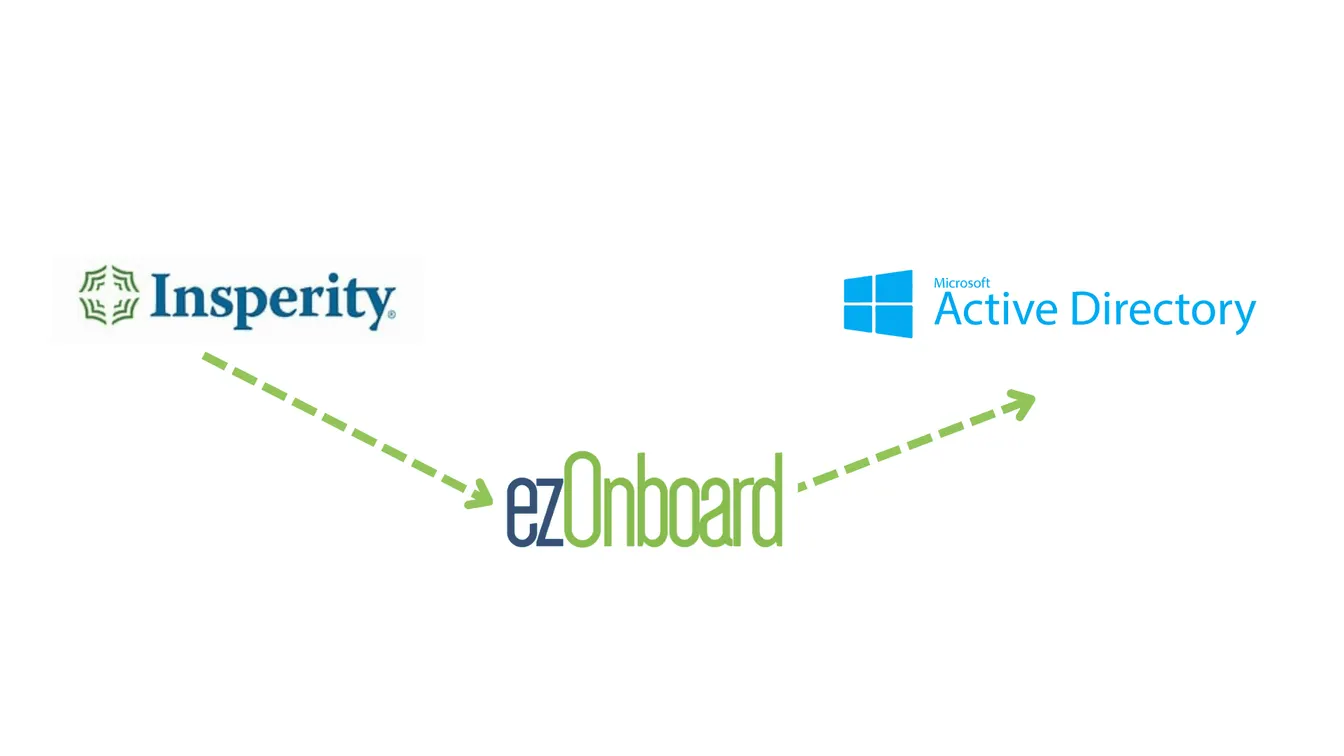
With ezOnboard, you can transform the traditional, often cumbersome, onboarding and offboarding processes into more efficient and error-free operations.
To get started, request a demo or check the ROI calculator to see how much money ezOnboard can save you.
FAQs About Insperity to AD
What is Insperity?
Insperity is an HR and payroll management platform designed to simplify tasks like employee onboarding, benefits, and compliance. It can minimize errors and save time, freeing up human resources to focus on more strategic goals like growing the business.
Insperity also supports integration with directory services like Active Directory, Entra ID, and Google Directory. This allows for seamless data transfer between different systems.
What are the benefits of connecting Insperity to Active Directory?
Connecting Insperity to AD improves operational security and efficiency. It automates employee data transfer between both systems. This can reduce manual entry and errors, which saves you time and money.
How to maintain a strong connection between Insperity and AD?
To maintain a stable connection, you should regularly monitor the integration and keep both systems updated. You can also set up automated alerts to help with ongoing monitoring.
For advanced support or troubleshooting, you can log in to the Insperity Premier client portal or partner with integrated solutions like ezOnboard. In addition to providing the software, ezOnboard works with you to deploy the platform in your environment.