A Step-by-Step Guide for GoCo to AD (Entra ID) Integration
Chad Burggraf6 min read

Does your company use GoCo to handle HR processes? You might want to integrate this human resources platform with on-premise Microsoft Active Directory (AD) or cloud-based Entra ID (formerly Azure AD).
Integration automatically creates accounts and provisions users in Active Directory once you add new hires to the HR software. It can save your team valuable time, allowing them to focus on other tasks.
Below, we’ll discuss the other reasons why this integration is important. We’ll also share seven simple steps to connect GoCo to AD.
Why Should You Integrate GoCo with Active Directory?
Syncing GoCo HR data with on-premise Active Directory and cloud Entra ID (Azure AD) can transform your business processes. Below are the top reasons to consider this integration:
Faster Onboarding and Offboarding
Integrating GoCo with AD (Entra ID) can automate onboarding and offboarding processes.
This means that when an HR record is added or updated in GoCo, Active Directory is instantly notified. It can automatically create user accounts and give new employees the correct access to business apps.
Likewise, if a user is removed from GoCo, their accounts and permissions are promptly revoked in AD.
Thanks to integration, IT teams can handle employee transitions quickly and accurately. They no longer have to rely on manual provisioning or deprovisioning, which can be time-consuming and error-prone.
Centralized User Management
You gain centralized control over user accounts once you connect GoCo to Active Directory. You don’t have to switch between platforms to manage employees’ credentials or permissions.
Instead, GoCo handles the HR side, while AD manages user access and cybersecurity policies during onboarding.
This centralized management ensures that any updates in GoCo, like job role changes or department shifts, are immediately reflected in AD.
It can reduce inconsistencies across different systems because you no longer have to rely on manual data entry.
Better Security
Integration can also strengthen your company’s security posture.
Active Directory can enforce strict access control based on user roles. This means that only authorized employees can access sensitive data.
If there are changes in GoCo, the system automatically adjusts AD permissions based on HR data.
For example, when an employee is promoted, their access rights are instantly updated. Likewise, if a worker leaves your organization, their permissions are revoked immediately to reduce unauthorized access.
Centralized control over user data also makes it easier to track changes and mitigate security risks, helping you achieve and maintain cybersecurity compliance.
Time and Cost Savings
Lastly, connecting GoCo with AD (Entra ID) can save time and money by automating routine tasks that would otherwise be handled manually.
Your IT team no longer has to spend hours setting up or deactivating accounts. You also reduce the need for multiple manual checks or following up on different systems because you have a big picture of your IT infrastructure.
Additionally, HR benefits from the integration, as they don’t need to copy and paste employee details from one platform to another.
Your human resources team can simply enter details in GoCo, which are automatically reflected in Active Directory.
In the long run, these time and cost savings from automated workflows can be significant, especially for large businesses.

How to Integrate GoCo with AD? 7 Simple Steps to Follow
After understanding the importance of integration, you’re probably wondering how to establish the connection between GoCo and Active Directory (Entra ID). Below are seven steps to guide you:
1. Prepare Integration Requirements
The first thing you must do is prepare everything you need for a smooth process. This includes admin access to both GoCo and AD(Entra ID), and a clear understanding of your integration goals.
You can also research documentation or knowledge base resources available for GoCo. Doing so minimizes the risk of running into integration issues later.
2. Obtain API Credentials from GoCo
Next, you’ll need access to GoCo’s public API. This allows the HR software to communicate with Active Directory.
To obtain the API key, log in to your GoCo account with admin permissions. Click the GoCo Marketplace on the sidebar and select Setup under the Integrations section.
You should take note of the API credentials, as you’ll use them later to authenticate requests.
If you have questions about GoCo’s API, refer to their self-service portal or contact their support team for guidance.
3. Configure Active Directory
After receiving the API key, you can set up your Active Directory environment. Make sure it is ready to receive and sync data from GoCo.
You should also map user roles and set permissions accordingly. To ensure secure access to systems, you can even group employees by department or location.
4. Establish the Connection Between GoCo and AD
To connect GoCo to AD, you need to authenticate your requests using a valid API key.
Go to the GoCo Marketplace and find the API Credentials section. You can use the Bearer Authentication scheme to enter the key in GoCo.
Then, you can retrieve a list of companies, users, documents, and other details from Active Directory.
5. Run Tests
After establishing the connection, you should test the integration in a sandbox environment.
Check if new employee data is syncing correctly with Active Directory. You can also update user details, such as role changes, to see if they are accurately reflected in AD (Entra ID).
6. Go Live
Once you’re confident that everything works smoothly, you can deploy the integration across your entire organization.
Sign in to your GoCo account and navigate to the Marketplace from the home page. On the left tab, you’ll see an Explore category. Select Build Your Own and click Add to automate tasks.
You can either choose from GoCo’s pre-built templates or make your own use cases for specific workflows, such as automating the benefits process.
7. Conduct Regular Audits
After going live, regular monitoring and audits are important. They help you identify mismatched details or access control issues that need to be addressed.
When you check the system periodically, you can maintain data integrity and system security.
Let ezOnboard Connect GoCo to AD (Entra ID)
ezOnboard provides smooth integration between GoCo and on-prem Active Directory or cloud Entra ID (Azure AD).
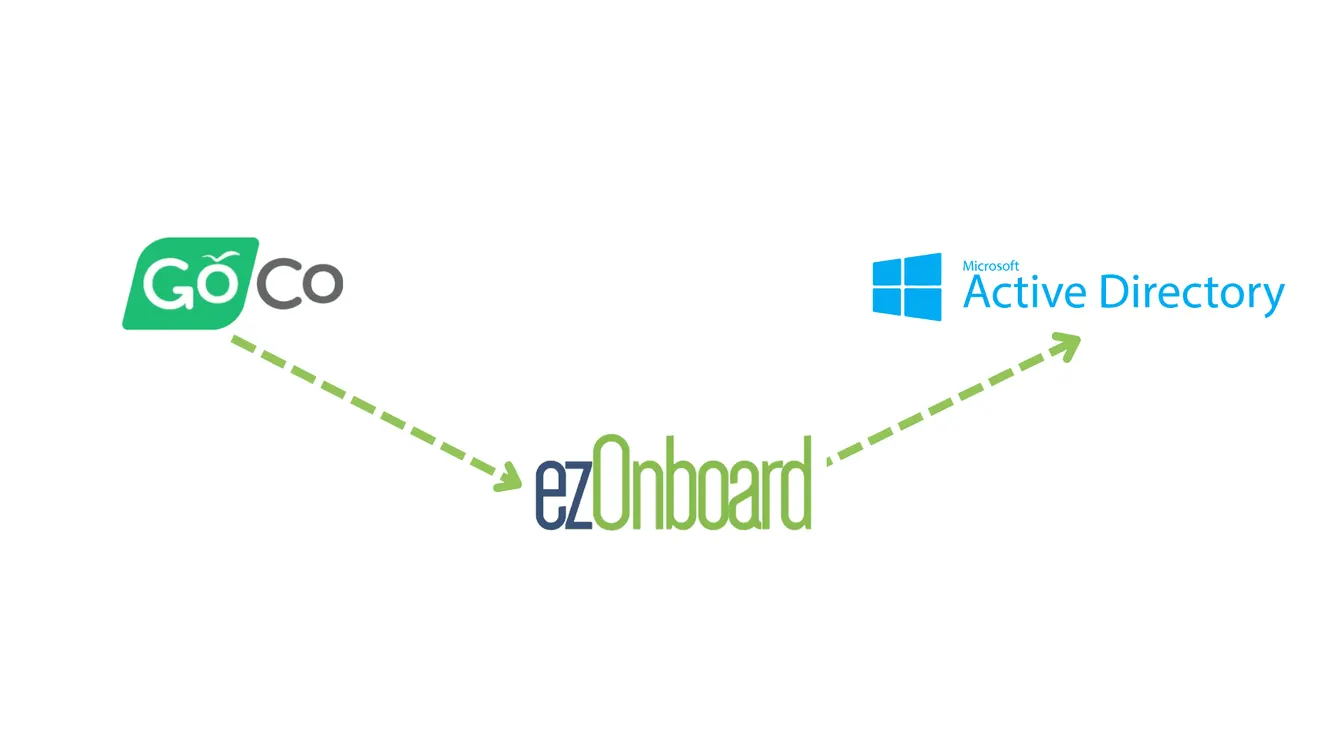
Once fully connected, employee details entered into GoCo are instantly and accurately reflected in your Active Directory environment. Other HR platforms have their own walkthroughs in our HR software integration guides.
ezOnboard allows you to streamline the typically time-consuming onboarding and offboarding processes, making them more efficient and reducing the risk of errors.
Request a demo or check the ROI calculator to see how much money ezOnboard can save you.
FAQs About GoCo to AD
What is GoCo?
GoCo is an all-in-one benefits and payroll platform that simplifies hiring, onboarding, compliance, and benefits administration. It also supports time tracking and time off requests, making it easier for HR teams to manage employee schedules efficiently.
What are the best practices for integrating GoCo with Active Directory?
To maintain a smooth integration, you need to set proper mapping rules, keep your API key secure, and conduct regular audits. You can also use third-party connector software like ezOnboard to handle the connection automatically.
Can you integrate GoCo with other apps?
In addition to Active Directory, GoCo can connect with communication apps, compliance software, payroll platforms, and project management tools, among others. To be specific, it can integrate with Google Sheets, E-Verify, ADP Workforce, Jira, and more.